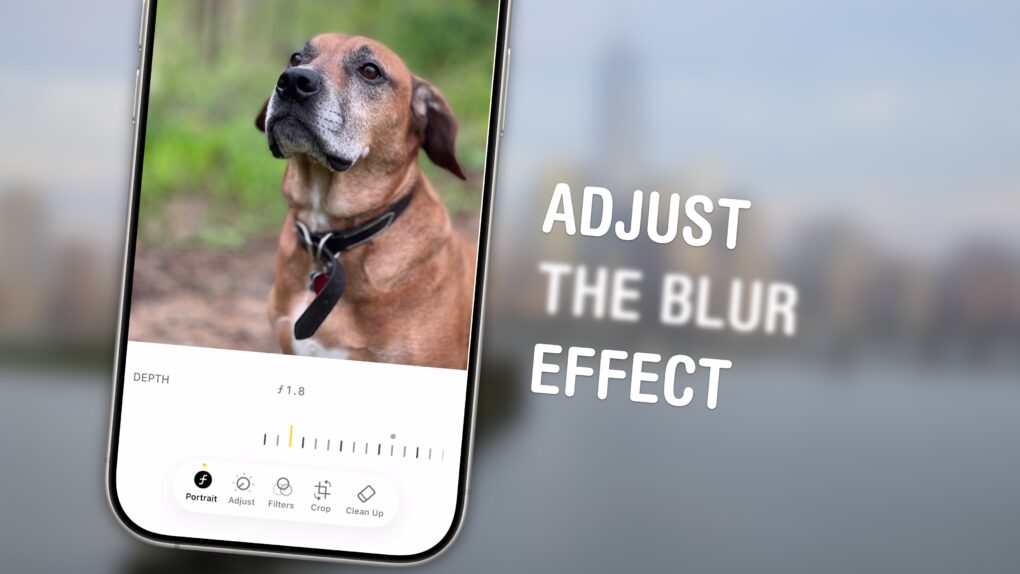
 You can adjust the background blur of a Portrait mode photo on iPhone and Mac — even after you’ve taken the picture.
Because the iPhone stores the depth data that it uses to create the blur effect along with the image itself, you can adjust how blurry or clear the background looks. It’s super-easy to get just the right amount of aesthetically pleasing background blur, aka bokeh, to make your images look perfect.
Why would you want to tweak the background blur on your iPhone photo? A blurrier background, under the right conditions, can make for a very dramatic picture. It can effectively emphasize the subject of your shot. Or, you might want to turn up the blur to intentionally hide details behind you. On the other hand, if you’re in a photogenic location, you might want to decrease the blur so you can see more of the gorgeous background scenery.
Either way, I’ll show you how to edit Portrait mode’s background blur in photos on iPhone and Mac.
Get better Bokeh: How to adjust Portrait mode blur on iPhone
The effect of a sharp subject with a blurry background results from a shallow depth of field in traditional film cameras. It’s captured optically when you use a very large aperture, or opening, in the camera lens.
While smartphone cameras don’t have mechanically adjusting apertures (at least not yet), the iPhone’s Portrait mode uses computational photography (aka software wizardry) to fake it. Portrait mode combines images from the iPhone’s multiple back lenses with depth information and a little machine learning to make a pretty convincing imitation.
Because it’s all added after the fact, you can adjust how intense the background blur is long after you took the shot. Here’s how.
Table of contents: How to adjust Portrait mode blur on iPhone
- Adjust Portrait mode on iPhone
- Adjust Portrait mode on Mac
- Use Portrait mode as a privacy blur — but beware
- More Photos features
How to adjust Portrait mode photo blur on iPhone
Screenshot: D. Griffin Jones/Cult of Mac
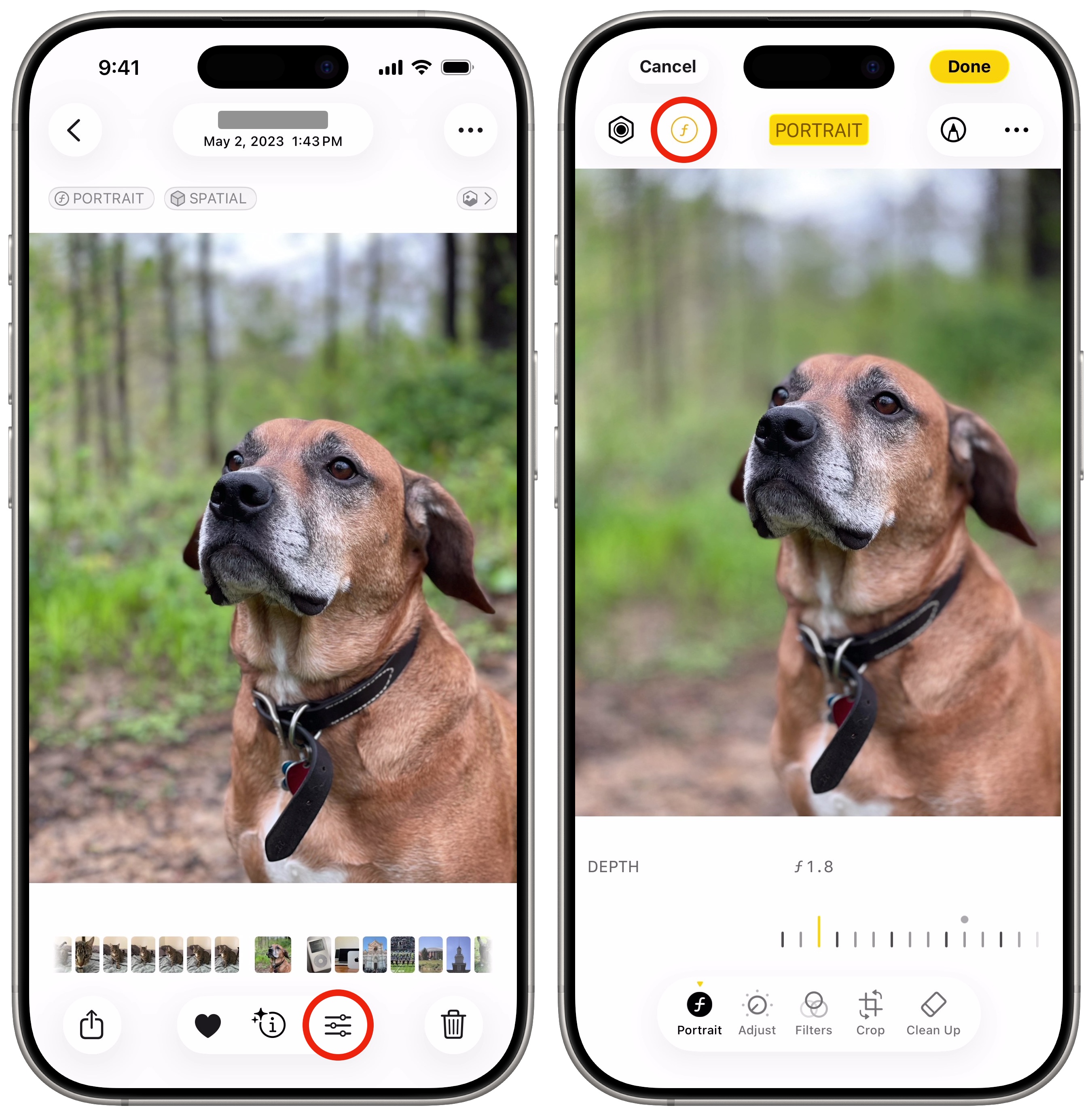
First, find the iPhone photo you want adjust in the Photos app. On your iPhone, tap Edit in the bottom right. It has an icon with a few settings sliders. You’ll see a button in the top left that says 𝑓4.5. Tap it to bring up a depth-of-field slider. Slide it to the left for a more shallow depth of field (more blur) or to the right for a deeper depth of field (less blur).
Note: Not every iPhone with Portrait mode lets you adjust the background blur of photos. The image needs to have been shot on a compatible iPhone (XS, XR, SE 2 or newer). You also need to edit the image on a compatible device — older iPhones can’t, but certain Macs can. Apple doesn’t maintain a published list of these devices.
How to adjust Portrait mode photo blur on Mac
Screenshot: D. Griffin Jones/Cult of Mac
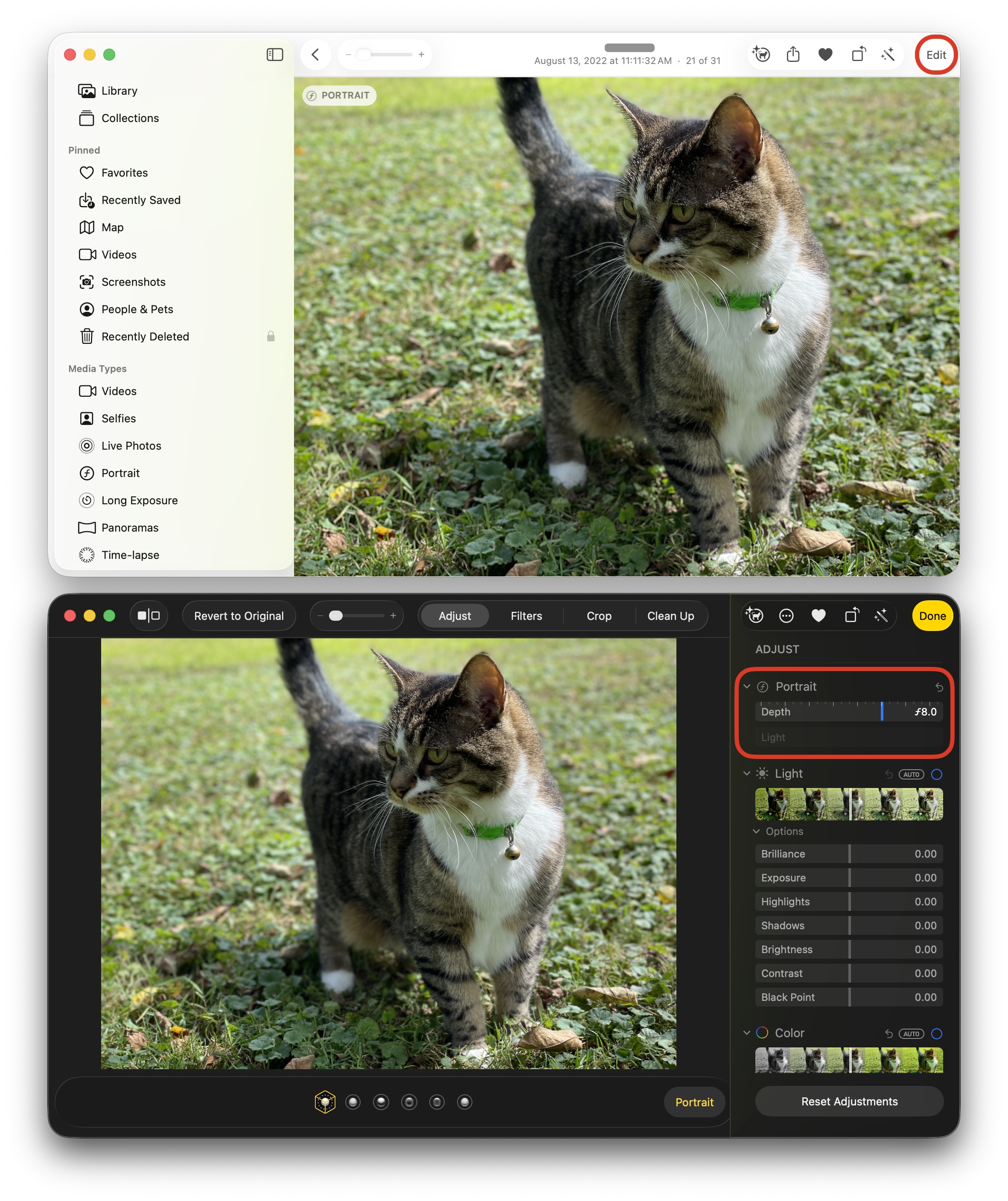
You also can adjust the iPhone photo blur in the Photos app on a Mac. Open the image in the Photos app, then click the Edit button in the toolbar. You will find the depth slider in the Portrait section at the very top. Click and drag the mouse over the slider to adjust the blur in your iPhone photo.
The Apple Support page does not say this is a hardware-limited feature, so it should be available on every Mac running a recent version of macOS.
Use Portrait mode as a privacy blur — but beware
Maybe you’d like to use a Portrait taken of you on social media — if only for that one thing in the background that reveals where you live, a personal item visible on a table, etc. Boosting the background photo blur, combined with cropping in a little bit, can effectively obscure parts of an image.
Just make sure that, despite my prior advice, you do not check “All Photos Data” when sending the picture to someone over iMessage or AirDrop. Otherwise, they’ll be able to undo your edits, get rid of the background photo blur you added to your iPhone photo, and possibly reveal the very thing you were trying to hide.
More Photos features
Now that you know how to adjust the background blur on your iPhone’s Portrait mode photos, it’s time for more photography tips:
- Learn how to use and customize the Photos app.
- Hide photos from your library to keep secret and/or illicit images out of your main camera roll. Find them in the Hidden album.
- Tag photos with the names of your friends, family members and pets so you can easily find pictures of them later on. The Photos app will detect pictures of people automatically — you just need to give them a name.
- Find duplicate photos to delete copies cluttering up your library.
- Make custom stickers from photos on your iPhone and send them in iMessage, Snapchat and WhatsApp.
- Crop, skew and rotate a photo to fix the perspective or angle a picture was taken from, correct some fisheye distortion on an ultra-wide photo and more.
- Save Live Photos as a video you can play back with full sound or share to social media.
- Convert a video or Live Photo to a GIF that you can put in a website, presentation or group chat.
- Create a photo memories movie using the Apple Photos app, powered by Apple Intelligence. Just type in a prompt, it’ll browse through your collection, and create a bespoke video set to music of your choosing.
We originally published this article on how to adjust iPhone photo blur on May 16, 2023. We updated it with the latest information on August 30, 2024 and January 9, 2026.

D. Griffin Jones is a writer, podcaster and video producer for Cult of Mac. Griffin has been a passionate computer enthusiast since 2002, when he got his first PC — but since getting a Mac in 2008, he hasn’t turned back. His skills in graphic and web design, along with video and podcast editing, are self-taught over 20+ years. Griffin has a bachelor’s degree in computer science and has written several (unpublished) apps for Mac and iOS. His collection of old computers is made up of 40+ desktops, laptops, PDAs and devices, dating back to the early ’80s. He brings all of these creative and technical skills, along with a deep knowledge of Apple history, into his work for Cult of Mac.

